Short answer
To resize a logo without losing quality, start from the largest or vector version you have (SVG, AI, EPS or PDF beats PNG, which beats JPG), only ever scale down, keep the aspect ratio locked, change the canvas rather than stretching the artwork, and export at 2× the size it will be displayed. If your only file is smaller than the size you need, no resizer can add real detail — get the original, trace it to SVG, or have it redrawn.
Key takeaways
- Shrinking a raster logo is safe; enlarging it always softens edges because the software has to invent pixels.
- The file you start from matters more than the tool you use. A vector original can be exported at any size with no loss.
- Resize the canvas to the platform’s shape and fit the logo inside it with padding — never stretch the artwork to fill.
- Export at 2× the display size for phones and high-density screens, then compress.
- Do the math first: if the logo needs to be 800 px wide inside the canvas and your file is 400 px wide, you need a bigger source.
Why logos lose quality when you resize them
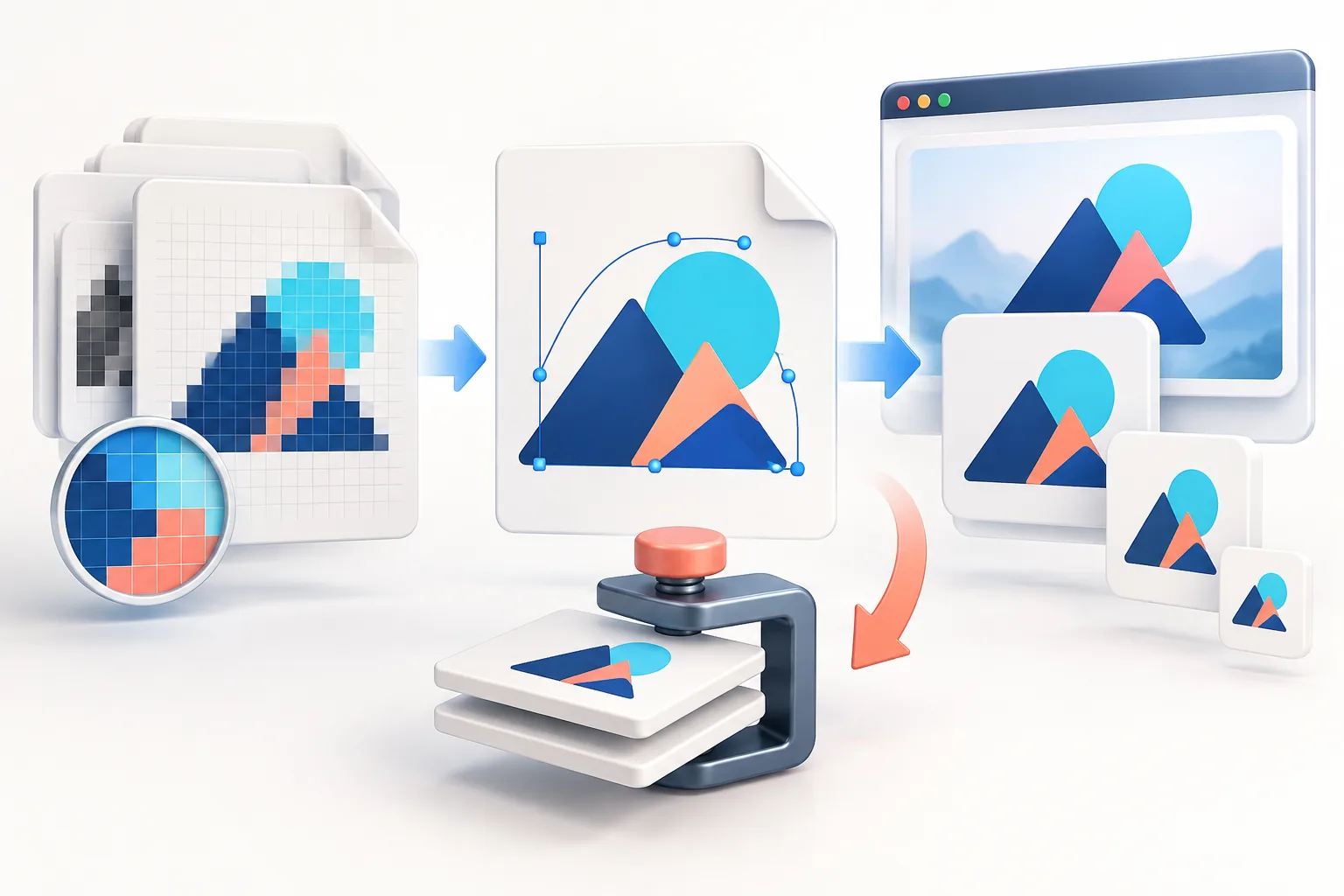
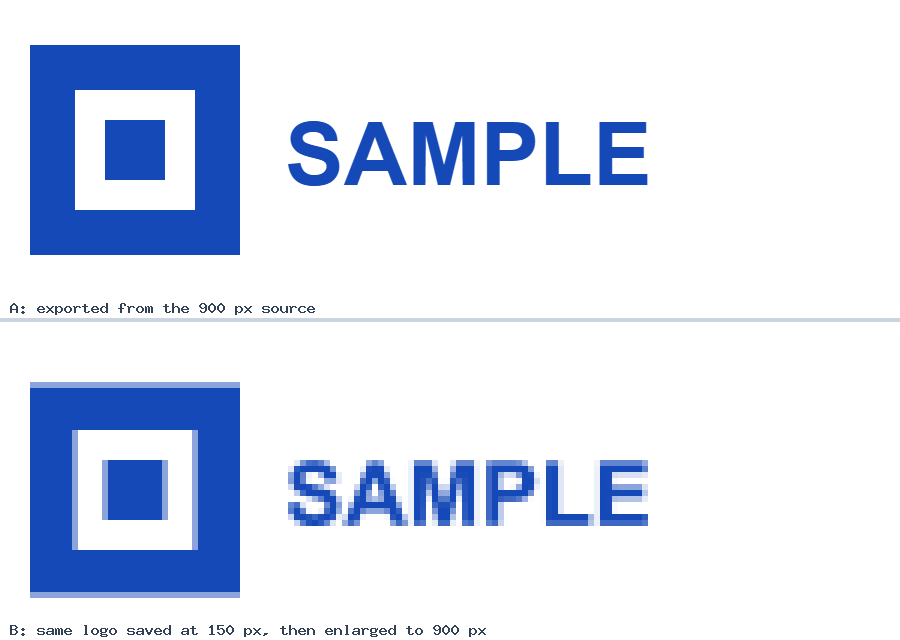
Most logos you receive as a small-business owner are raster images — PNG, JPG or WebP files made of a fixed grid of coloured pixels. A 600 × 200 PNG contains exactly 120,000 pixels of information. When you ask software to display that logo at 1200 × 400, it needs 480,000 pixels, so it has to guess three out of every four. It does this by interpolation: blending neighbouring pixels to make new in-between ones. Interpolation is good at hiding the grid, but it cannot recreate the crisp boundary between a letter and its background. The result is the soft, slightly fuzzy edge everyone recognises as “blurry logo”.
Scaling down works the other way. The software has more information than it needs and averages groups of pixels into one. Modern resamplers (the Logo Resizer uses the browser’s high-quality canvas smoothing) do this cleanly, which is why a large source exported to a small size looks sharp.
Vector logos — SVG, AI, EPS and most PDFs from a designer — are different. They store shapes as mathematical paths (“a curve from here to here, filled with #1D4ED8”), so they can be rendered at 16 px or 16 metres with the same precision. When you “resize” a vector, nothing is guessed.
Step 1: Find the best source file you can
Before touching any resize setting, spend five minutes finding the best original. It is the single biggest quality decision you will make. Use this hierarchy, best first:
| Rank | File type | Where to look | Quality ceiling |
|---|---|---|---|
| 1 | SVG, AI, EPS, vector PDF | Designer hand-off folder, brand guidelines ZIP, print shop | Unlimited — export any size |
| 2 | Large PNG (1500 px+ wide) with transparency | Website media library, brand kit, Canva/Figma project | Sharp up to its own size |
| 3 | Large JPG | Old email attachments, printer proofs | Sharp but no transparency; may have artefacts |
| 4 | Small PNG/JPG, favicon, social avatar | Downloaded from your own website or profile | Only usable at small sizes |
| 5 | Screenshot or photo of the logo | — | Avoid; wrong colours, compression and blur baked in |
Two tips save a lot of time. First, search your email for “.svg”, “.eps” or “logo” with attachments — designers usually send the full package once. Second, if your website runs on WordPress, open Media → Library and check the “original” upload; the version shown in your header is often a resized copy, but WordPress keeps the full-size file.
A PDF is only vector if it came from design software. If zooming to 800% in a PDF viewer still shows smooth curves, it is vector and you can open it in Inkscape (free), Illustrator or Affinity to export a PNG at any size.
Step 2: Do the math before you export
“High resolution” is meaningless on its own. What you need to know is how many pixels wide the artwork will be on the final canvas. Here is the calculation we use for every client job:
- Start with the canvas. Say an Instagram profile picture: 320 × 320 px as stored by Instagram. We recommend exporting 2× — 640 × 640 — so it stays sharp if the platform later serves larger versions.
- Subtract padding. Profile pictures are cropped to a circle, so keep the artwork inside roughly 70% of the width: 640 × 0.7 ≈ 450 px.
- Compare with your source. If your logo file is at least 450 px wide, you are only scaling down — safe. If it is 300 px wide, you would be enlarging it by 1.5× and it will soften.
Run the same check for a wide canvas. A 1500 × 500 X (Twitter) header with a wordmark taking up 40% of the width needs a source that is at least 600 px wide — or 1200 px if you want a 2× export for retina screens.
Rule of thumb: your source file should be at least as wide as the artwork will appear in the export. If it is not, stop and find a larger file rather than hoping the resizer will fix it.
Step 3: Resize the canvas, not the logo
The most common mistake we see is typing the platform dimensions straight into an image editor’s “Image size” dialog with the aspect-ratio lock off. A 3:1 wordmark forced into a 1:1 square becomes squashed and wide — and every visitor notices even if they cannot say why.
The correct mental model is a picture frame. The canvas is the frame the platform wants (square, 16:9, 4:1). Your logo keeps its own proportions and sits inside the frame with some empty space around it. The Logo Resizer is built around this: when you set a 1080 × 1080 canvas with Keep logo proportions on, a wide logo is scaled to fit the width minus padding, and the leftover space is filled with transparency or the background colour you choose.
Empty space is not a failure — it is what makes a logo look deliberate. Brand guidelines call this “clear space”, and most specify at least the height of one letter of the logotype on every side.
Step 4: Pick the right export format
The format decides whether edges survive compression and whether transparency is kept:
- PNG — lossless and supports transparency. The default for logos on websites, documents, social uploads and email.
- WebP — smaller than PNG for the same visual quality and also supports transparency. Ideal for your own website; some upload forms still refuse it.
- JPEG — no transparency, and its compression creates visible smudges (“ringing”) around the sharp, flat-coloured edges that logos are made of. Use only when a platform requires it and the logo sits on a solid background.
- SVG — the best choice for website headers when you have a true vector, but most social platforms and email clients will not accept it.
We tested these trade-offs with real file sizes in PNG vs WebP vs JPEG for logos.
Step 5: Export at 2× for sharp screens
Almost every phone and most laptops now have high-density (“retina”) displays that pack two or three physical pixels into each CSS pixel. A logo that is displayed 200 px wide on your website is drawn with 400–600 physical pixels on those screens. Serve a 200 px file and the browser stretches it — the exact enlargement problem from Step 1.
The fix is to export at twice the display size and tell the page the display size. A header logo shown at 200 × 60 should be a 400 × 120 file with width="200" height="60" in the HTML. Platforms like Instagram and YouTube handle this themselves, which is why their recommended upload sizes are larger than the size you actually see.
Step 6: Inspect the result before you upload
Open the downloaded file and check it at 100% zoom (not “fit to window”, which hides problems). Look for:
- Soft edges on text and thin lines — a sign the source was too small.
- Halos — a thin white or grey outline around the logo on dark backgrounds, usually left over from a background that was removed from a JPG. See our transparency guide for fixes.
- Cropped corners — if the destination crops to a circle, the corners of a square logo will disappear.
- File size — a 400 × 120 header logo should be a few kilobytes, not hundreds. If it is large, run it through the Image Compressor.
What to do when you only have a small or blurry logo
Sometimes the only file that exists is a 250 px JPG from an old website. You have four realistic options, in order of quality:
- Ask for the original. The designer, printer, sign maker or embroidery company almost certainly has a vector. Printers in particular keep files for re-orders.
- Trace it to SVG. For flat logos with a few solid colours and simple shapes, automatic tracing produces a usable vector. Our PNG-to-SVG guide explains when it works.
- Use an AI upscaler carefully. AI upscalers can sharpen edges convincingly, but they also invent detail — letter shapes can drift and small text can become nonsense. Always compare against the original at 100%.
- Have it redrawn. A designer can rebuild a simple logo as a clean vector in an hour or two. For a logo you will use for years, this is often the cheapest fix.
Which tool should you use?
For one-off jobs almost any editor can produce a clean resize if you follow the steps above. The differences are in speed, privacy and whether the tool understands canvases and padding:
| Tool | Good for | Watch out for |
|---|---|---|
| Logo Resizer (this site) | Exact canvases, padding, transparent PNG/WebP, batch export, files stay on your device | Raster only — it cannot add detail a small file lacks |
| Canva | Designing full graphics around the logo | Transparent PNG download requires a paid plan |
| Figma / Illustrator / Inkscape | Vector originals, precise brand work | Learning curve; overkill for quick exports |
| Photoshop / Affinity Photo | Retouching and complex raster edits | Easy to stretch accidentally with “Image size” |
| macOS Preview / Windows Photos | Quick downscaling | No canvas padding; easy to lose transparency |
Whichever tool you use, the quality comes from the source file and the math — not from a “magic” setting.
Frequently asked questions
Can I make a small logo bigger without it getting blurry?
Not with a normal resize. Enlarging a raster image always requires inventing pixels, which softens edges. You need a larger original, a vector version (SVG, AI, EPS or PDF), a traced SVG for simple logos, or a redraw.
What resolution should my logo file be?
Keep a master file that is at least 2000 px on its longest side, or better, a vector. For individual uses, export at twice the size the logo will be displayed — for example 400 px wide for a logo shown 200 px wide in a website header.
Why does my logo look blurry after uploading to social media?
Usually because the upload was smaller than the platform’s recommended size, so the platform enlarged it, or because the platform recompressed a JPEG. Upload a PNG at or above the recommended size and keep the artwork centered with padding.
Does resizing a PNG reduce its quality?
Scaling a PNG down keeps it sharp. Scaling it up softens it. Saving as PNG never adds compression artefacts because PNG is lossless.
Should I resize my logo in Canva or a dedicated tool?
Either can work. A dedicated resizer is faster for exact platform canvases, padding and batch exports and keeps transparency without a paid plan. Canva is better when you are designing a full graphic around the logo.
Is DPI important when resizing a logo for the web?
No. Screens only care about pixel dimensions. DPI (or PPI) only matters for print, where you typically need 300 pixels per printed inch — or a vector file.
Tools used in this guide
All tools run in your browser; your image files are not uploaded to our server.
Sources checked for this guide
- MDN: devicePixelRatio and high-density displays
- MDN: image file type and format guide
- web.dev: serve responsive images
Platform upload rules change. We re-check the sources above when we update a guide; if you spot something out of date, send a correction.